Praetor Guide
This page covers using the desktop app once it's installed. For installing it, and for a quick reference of every shortcut and slash command, see Praetor.
The layout
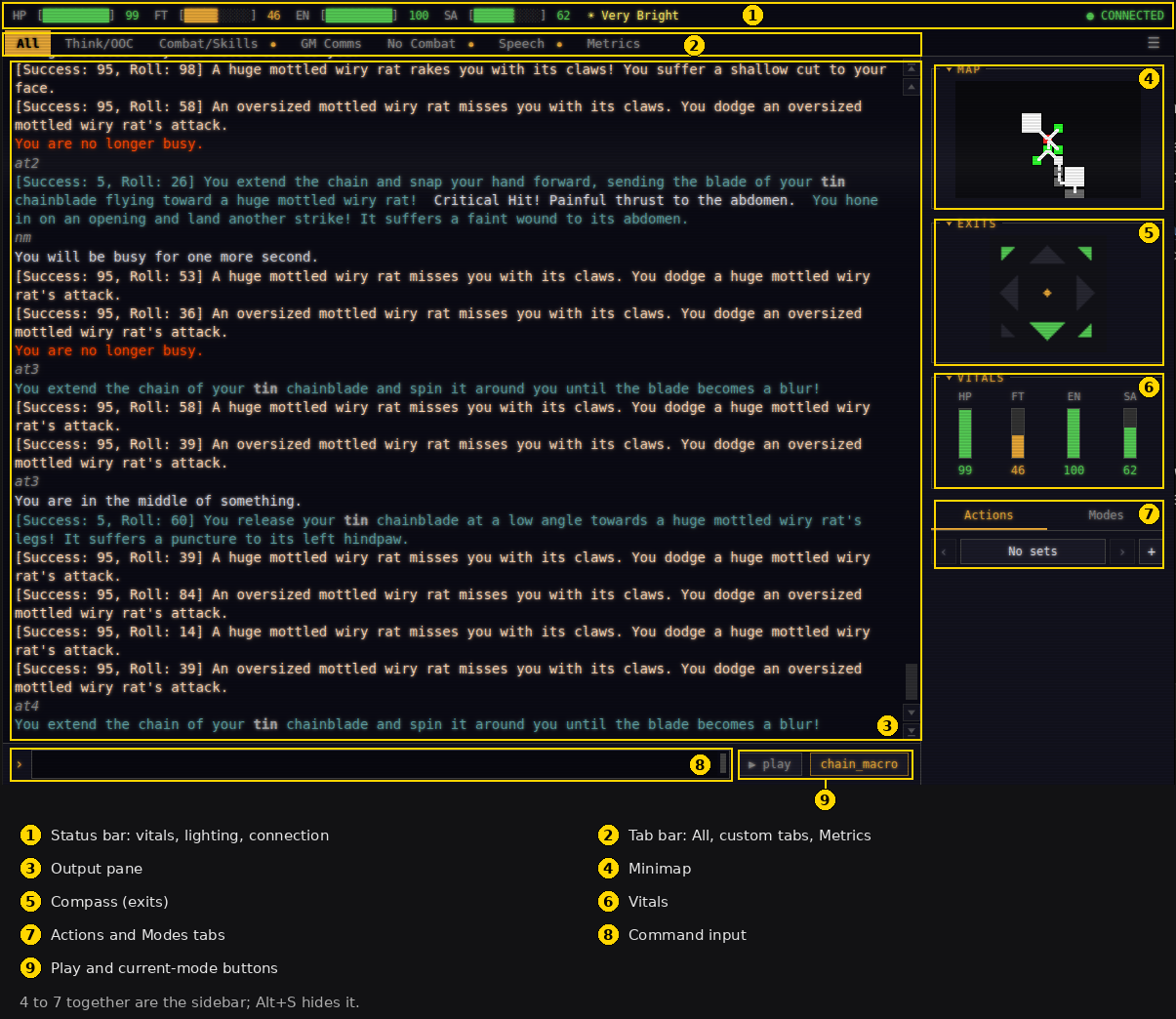
The numbers match the callouts in the picture.
- Status bar: your vitals, a lighting readout (click it to check the light level), and whether you're connected.
- Tab bar: All is always there, plus any custom tabs you've set up and a Metrics tab. See Tabs below.
- Output pane: game text scrolls here. The mouse wheel and PgUp/PgDn scroll it, and a burst of incoming text keeps following the bottom unless you've scrolled up to read back.
- Minimap: rooms as colored squares. White lines are open passages, black lines are walls, brighter squares are better-lit rooms.
- Compass: green arrows are exits you can take right now. The center dot carries up/down markers when a room has them.
- Vitals: Health, Fatigue, Encumbrance, and Satiation. Click one to check your exact condition.
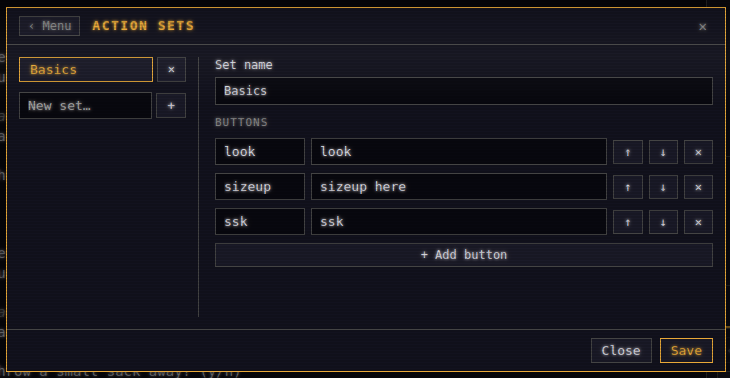
- Actions, Modes, and Variables tabs: Actions holds your own button sets (set them up under Action Sets in the Esc menu). Modes lists the loaded automation modes. Variables manages saved values you can insert into typed commands and Action buttons. Changes made here are the same ones shown under Automation, then Variables, in the Esc menu.
- Command input: where you type to the game. A hint line appears just above it while you type a slash command, showing what the command expects.
- Play and current-mode buttons: the play button starts a play script (see Play scripts below), and the button beside it shows the running mode. Click it to switch. While a typed command chain still has commands waiting, the play button is replaced by a Stop button that discards the rest of the chain.
Regions 4 to 7 together are the sidebar. Alt+S hides or shows it. Right-click the output for a Copy/Paste menu. Ctrl+C copies a selection and Ctrl+V pastes into the input.
Tabs
The All tab always receives everything. Custom tabs filter game text by your own include and exclude rules. A line appears in a tab if it matches any include rule and no exclude rule. Rules are case-insensitive substrings, with two wildcards:
| Wildcard | Stands for | Example rule | Matches | Doesn't match |
|---|---|---|---|---|
* |
any run of characters, including none | You hit the*rat |
You hit the rat, You hit the giant rat | You hit a rat |
? |
exactly one character | ?at |
rat, cat, hat | at |
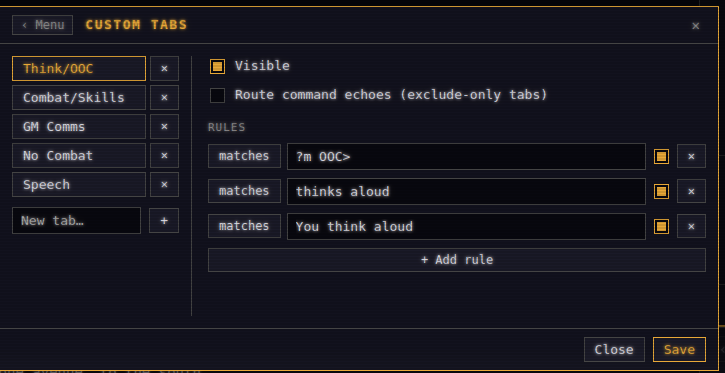
To build a Think/OOC tab:
1. Press Esc, choose Display & Behavior, then Custom Tabs.
2. Add a new tab and name it:
Think/OOC
3. Add these three include patterns, one per rule:
?m OOC>
thinks aloud
You think aloud
4. Click Save.
To build a Combat/Skills tab:
1. In Custom Tabs again, add a new tab and name it:
Combat/Skills
2. Add these four include patterns, one per rule:
[Success:
You are no longer busy
is stunned!
is no longer stunned
3. Click Save.
An exclude-only tab (no active include rules) can opt in to showing the commands you send, via that tab's own Route command echoes (exclude-only tabs) checkbox. Otherwise it would catch every echoed command, since an exclude-only tab matches everything not explicitly excluded.
The Metrics tab is a session dashboard: kills, actions, session duration, and any metrics a running mode declares, plus a history of past sessions.
Tab and Shift+Tab cycle tabs. Alt+1 through Alt+9 and Alt+0 jump straight to a tab (0 is the tenth).
PraetorScript
Beginning with Praetor 0.5.0, single-line command input and Action Set buttons support PraetorScript, a lightweight language for combining commands, saved values, timing, and reactions to game text.
PraetorScript is intended for short command sequences. It does not replace Lua modes or /play scripts.
Variables: ${}
Insert a saved variable with ${name}:
kill ${target}
get ${weapon}
Variables are managed through the sidebar's Variables tab or Esc → Automation → Variables.
Add a fallback after a colon when a variable might be empty or missing:
count ${count:25}
get ${weapon:gladius}
In the case above, if count has a non-empty saved value, Praetor inserts that value. Otherwise it inserts 25. A value such as 0 is populated and does not use the fallback.
Variable names are case-sensitive. Values and fallbacks are inserted once and are not processed recursively. They cannot inject extra separators or control steps.
An unknown variable without a fallback rejects the entire submission before anything is sent.
Fixed delays: ;;
Separate commands with ;; to send them in order using the configured chain delay:
stand;;look;;inventory
Praetor sends stand, waits for the configured delay, sends look, waits again, and then sends inventory.
The default delay is 900 milliseconds. Change it under Esc → Display & Behavior → Settings → ;; chain delay.
A single semicolon is ordinary text.
Waiting for roundtime: &&
Use && when the next command should wait for the game to report that you are ready:
stand&&climb wall&&look
Praetor sends stand and waits for a recognized unbusy response. After the configured response delay, it sends climb wall. The next unbusy response advances the chain to look.
The default response delay is 100 milliseconds. Change it under Esc → Display & Behavior → Settings → && response delay.
Recognized responses include:
- You are no longer busy.
- You are no longer stunned.
- You wield…
- You grab onto…
- You are already wielding…
- You successfully train to rank…
- You stop walking…
Please reach out to CyberGodzilla 2099 in #unofficial-clients in Discord if you find other "No Longer Busy" style responses that should be added here
One unbusy response advances one waiting chain. When several chains are active, they consume these responses in submission order.
A single ampersand is ordinary text.
Control steps: $()
A $() control step can pause a chain, wait for game text, display a notification, or repeat a command.
Each control must occupy a complete chain step.
Wait for a duration
look;;$(wait 2.5);;inventory
$(wait 2.5) pauses the chain for 2.5 seconds.
The surrounding ;; separators retain their normal delays. In this example, Praetor waits the configured ;; delay before reaching the control step, waits another 2.5 seconds, and then waits the next ;; delay before sending inventory.
The number of seconds may come from a variable or fallback:
look;;$(wait ${pause:2.5});;inventory
Wait for game text
search here;;$(wait-for "You find a button");;push button
wait-for pauses until a future game line contains the quoted text. Matching is case-sensitive.
When wait-for immediately follows a command, Praetor activates the matcher before sending that command. This prevents a fast response from arriving before the matcher is ready.
There is no automatic timeout. Use the chain's Stop button or Alt+X if the expected text never arrives.
Show a notification
look;;$(notify "Finished looking")
notify displays a Praetor notification and requests an operating-system desktop notification, then continues the chain.
Variables and fallbacks work inside the message:
$(notify "${item:sought item} acquired")
Repeat until successful
$(repeat "unlock chest with lockpick" until "You hear a click")
repeat sends the quoted game command immediately. Each recognized unbusy response causes Praetor to send it again after the configured && response delay.
When a future game line contains the until text, the repeat ends and the surrounding chain advances.
Add cancel-on when a response should stop the entire chain instead:
$(repeat "unlock chest with lockpick" until "You hear a click" cancel-on "Your lockpick broke");;look
In this example:
unlock chest with lockpickrepeats after each unbusy response.You hear a clickends the repeat and advances tolook.Your lockpick brokecancels the entire chain, solookis not sent.
Success and cancellation matching is case-sensitive. The repeated command must be a game command, not a local slash command.
A repeat has no attempt limit. Use Stop or Alt+X to end one manually.
Combining the features
PraetorScript features can be combined in the same submission.
This example uses variables, fallbacks, a success-aware repeat, fixed pacing, and a notification:
$(repeat "search ${container:chest}" until "You find ${item:key}" cancel-on "You find nothing");;get ${item:key};;$(notify "${item:key} acquired")
Praetor:
- Uses the saved
containeranditemvalues, falling back tochestandkey. - Repeats the search after each unbusy response.
- Advances when the success text appears.
- Cancels everything if
You find nothingappears. - Gets the item after the configured
;;delay. - Displays a notification after the next configured delay.
This example combines unbusy-aware commands with an explicit pause:
stand&&get ${weapon:gladius};;$(wait ${pause:2});;wield ${weapon:gladius};;$(notify "Ready")
Literal syntax and quoted text
Escape PraetorScript syntax when you want to send it literally:
| Write | Sends |
|---|---|
\${ |
${ |
\;; |
;; |
\&& |
&& |
\$() |
$() |
Inside quoted $() arguments, escape a quote as \" and a backslash as \\:
$(notify "The guard said \"halt\"")
Pipes, semicolons, &&, and other punctuation inside quoted arguments are ordinary text:
$(wait-for "Result | success ;; continue && ready")
Scope and safety
The full PraetorScript language applies to:
- Single-line command input
- Action Set buttons
Variable expansion, including ${name:fallback}, also applies to:
- Multi-line submissions
- Files sent with /send
Multi-line submissions and /send files do not interpret ;;, &&, or $() controls. Lua modes, Lua scripts, /play scripts, numpad movement, and other direct interface controls bypass PraetorScript.
Praetor validates the entire submission before sending its first command. A single submission may contain up to 100 commands and control steps.
While a chain is waiting, the Play button becomes Stop. Stop cancels queued commands, timers, text matchers, and repeats. Commands already sent to the game cannot be recalled.
Pending chains are also discarded when the connection closes or is replaced.
Typing commands
Plain Enter sends the input line to the game. Up and Down recall earlier commands from your history, when the caret sits on the input's first or last line.
Ctrl+R opens reverse history search, readline-style: type to filter, Ctrl+R again steps to an older match, Enter sends the match, Esc cancels.
Tab completes a slash command when the hint line is showing a suggestion.
Shift+Enter (or Ctrl+Enter or Alt+Enter) inserts a newline instead of sending. Saved variables are expanded, then the multi-line block goes out as a single message, embedded newlines and all, and the server splits it. Slash commands and command-chain separators aren't interpreted inside a block. The Retain Input After Send setting keeps the sent text selected in the input instead of clearing it (see Settings below for how to change settings).
The Input spellcheck setting turns spellcheck on the command input on or off.
Moving around
| Key | Sends | Key | Sends | Key | Sends |
|---|---|---|---|---|---|
| 7 | nw | 8 | n | 9 | ne |
| 4 | w | 5 | look | 6 | e |
| 1 | sw | 2 | s | 3 | se |
| 0 | ss | . | stand | ||
| − | down | + | up |
With NumLock off, the numpad walks. With it on, the numpad types digits as usual. Holding a movement key repeats the command, so you can hold a direction to keep walking. The Numpad navigation setting offers three choices: Only when NumLock is off (the default), Always (required on macOS, which has no NumLock, so the numpad then never types digits), and Never. The plus and minus keys always send up and down, regardless of NumLock.
You can also move with the mouse. Clicking a direction on the compass walks that way, and clicking the minimap sends:
sizeup here
Slash commands
Anything you type starting with a slash is handled by Praetor itself and never reaches the game. A hint appears above the input as you type, showing what the command expects.
| Command | Arguments | Description |
|---|---|---|
| /help | Search game help; show input syntax, key bindings, and commands | |
| /guide | Open the getting-started window and Praetor wiki links | |
| /list | Browse the loaded modes | |
| /mode (/sm) | <name> [args…] | Start a mode |
| /toggle | <label> | Toggle a mode state value |
| /set | <label> <value> | Set a mode state value |
| /calc (/rb) | Rank-bonus calculator | |
| /wiki | [name] | Open a wiki bookmark, or list them |
| /maps | [name] | Open a map bookmark, or list them |
| /kudos | [name] [message] | Kudos menu, add a favorite, or queue one |
| /notes | [add|open|delete|list] [title] | Notepad |
| /send | Pick a text file, expand saved variables, and send it to the game | |
| /play | Pick a script and perform it | |
| /pause | Hold the running performance | |
| /resume | Continue a held performance | |
| /stop | End the performance and drop its state | |
| /next | Release a %wait-key hold |
Slash commands are not interpreted inside a multi-line block.
The Esc menu
This is the main entrypoint to all Praetor menus
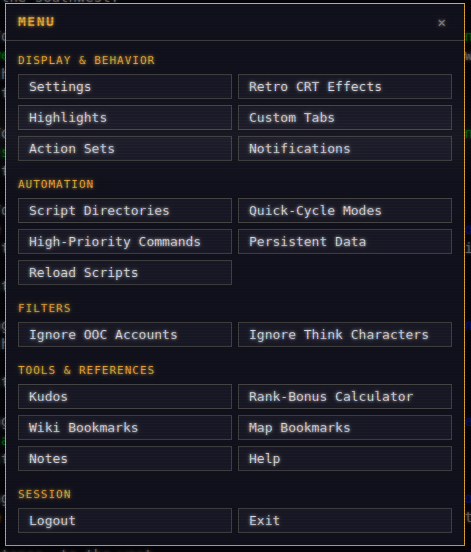
Display & Behavior
- Settings: the app's general options, listed below
- Retro CRT Effects: optional scanline and glow styling for the output pane
- Highlights: color patterns in the output so drops and keywords stand out
- Custom Tabs: build your own filtered output tabs
- Action Sets: your own sidebar buttons, with support for variables and command chains
- Notifications: desktop alerts for low vitals, text patterns, and opt-in Lua script alerts
Settings
To change any setting:
- Press Esc
- Choose Display & Behavior, then Settings
- Change what you need
- Save
The settings are:
- Output text size: pick a font size for the output pane
- Minimap Scale (Zoom): zoom level for the minimap
- Compass scale: zoom level for the compass
- GUI sidebar width (px): width of the desktop sidebar in pixels
- GUI map height (px): height of the minimap area in pixels
- Color words: render color names (crimson, azure, and so on) in an approximation of that color
- Echo typed commands: show commands you type in the output, as italic text
- Echo script commands: show commands a running mode sends, as italic text
- Hide IP addresses: replace real IP addresses in game text with consistent fake ones, for example when streaming
- Input spellcheck: spellcheck the command input
- Retain Input After Send: keep the sent text selected in the input instead of clearing it
- Numpad navigation: Only when NumLock is off, Always, or Never (see Moving around above)
- Check for updates on startup: check GitHub for a newer release when Praetor starts
- Session transcript logging: record timestamped game text to a log file
- Log path: where session transcripts are written (blank means the default)
Automation
- Variables: saved name/value pairs used by typed input, Action Set buttons, and /send files; this is the same editor as the sidebar Variables tab
- Script Directories: the folders Praetor loads modes from
- Quick-Cycle Modes: choose the modes Alt+M steps through
- High-Priority Commands: commands that jump the queue instead of waiting
- Persistent Data: what your modes have saved, with export and clear
- Reload Scripts: rescan your script folders for changes
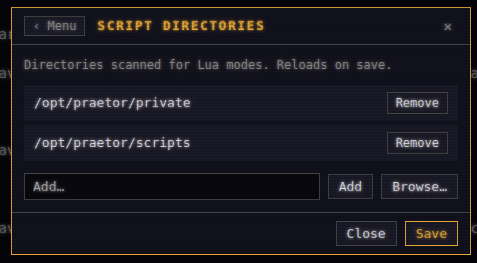
Variables stores reusable name/value pairs. Add a name and value, then save. Names must begin with a letter or underscore and can contain only letters, numbers, and underscores. Use them with ${name} in typed input, Action Set buttons, and /send files. Editing variables here or in the sidebar updates the same saved list.
Quick-Cycle Modes lets Alt+M step through a chosen set of modes:
- Press Esc
- Choose Automation, then Quick-Cycle Modes
- Toggle the modes you want in the cycle
- Save. Alt+M now advances through them in list order
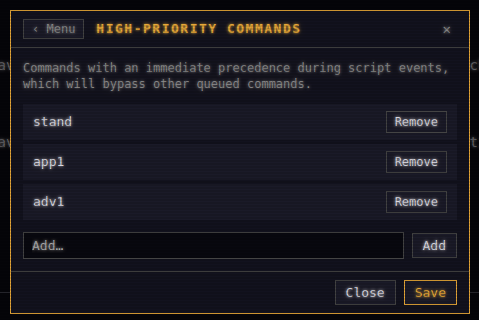
High-Priority Commands jump ahead of normal queued commands while preserving their order relative to other priority commands. Duplicate commands already waiting in the queue are dropped. If the queue is full, an incoming priority command replaces the newest normal command; if the queue contains only priority commands, the incoming command is dropped.
1. Press Esc, choose Automation, then High-Priority Commands.
2. Add the exact command text, one per entry:
stand
retreat
3. Click Save.
Filters
- Ignore OOC Accounts: hide OOC chatter from accounts you name
- Ignore Think Characters: hide think-channel text from characters you name
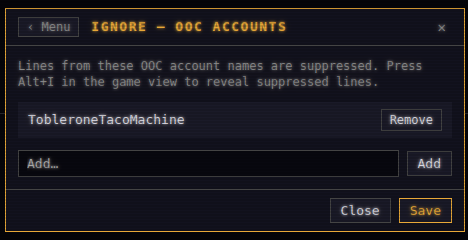
Both filters match on the name shown in the line, and nothing else. Someone who switches between their in-character and out-of-character names on the OOC channel shows up as two different names, so you'd have to add both to stop seeing them.
A filtered line isn't deleted. It shows in the output as a short gray placeholder, so you can tell something was hidden. If you had ignored an account called Lucilla, her OOC lines would appear as:
[suppressed: Lucilla OOC]
Click the placeholder to reveal that one line, or press Alt+I to reveal every hidden line at once. Neither turns the filter off.
To ignore someone:
- Press Esc
- Choose Filters, then Ignore OOC Accounts (or Ignore Think Characters)
- Add the name
- Save
Tools & References
- Kudos: favorite names and queued kudos messages
- Rank-Bonus Calculator: rank-bonus and training-cost math
- Wiki Bookmarks: open a TEC wiki page in your browser
- Map Bookmarks: open a TEC map page in your browser
- Notes: the notepad
- Help: game-help search, input syntax, key bindings, and slash commands
Each of these has its own section further down this page.
Session
- Logout: return to the account picker without quitting
- Exit: close Praetor
Highlights and notifications
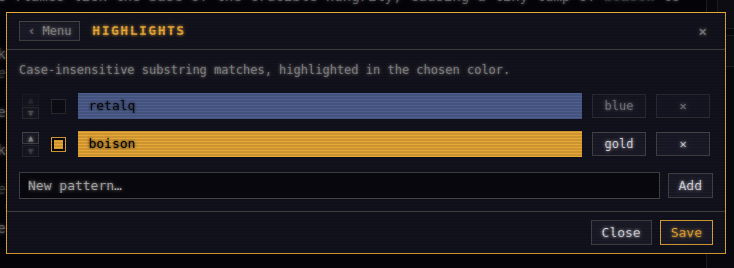
Highlights make text stand out with a colored background, useful for rare drops and other things you don't want to miss scrolling past. To add one:
1. Press Esc, choose Display & Behavior, then Highlights.
2. Add a new highlight and type the text to match. It's a case-insensitive substring, not a wildcard:
retalq
3. It's created in the gold style by default. Cycle its style between red, gold, green, and blue.
4. Click Save. You can toggle a highlight off, or delete it, at any time.
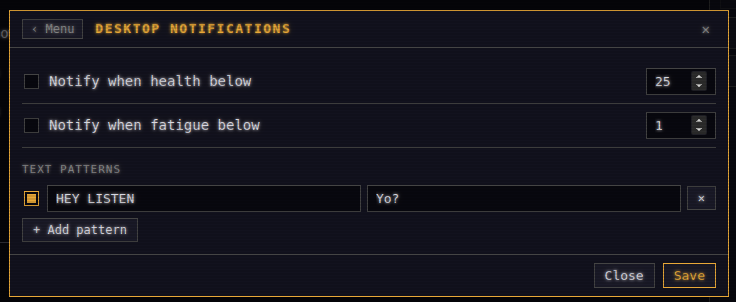
Notifications raise desktop alerts and in-app notices when something happens. To set them up:
- Press Esc
- Choose Display & Behavior, then Notifications
- Turn on Allow Script Notifications if Lua modes should be allowed to send notifications. It is off by default and controls both their desktop alerts and in-app notices; built-in threshold and pattern notifications still work independently
- Choose whether notifications play the operating system's default sound
- Set a health-below threshold (on by default, at 25) or a fatigue-below threshold (off by default, at 10)
- Add your own text patterns: text to match, plus an optional notification title and message. Matching is case-insensitive;
*matches any run of characters and?matches one character - Save
If a pattern title is blank, Praetor uses Alert. If its message is blank, Praetor uses the matching game text.
Search
Ctrl+F opens the scrollback search bar. Matches are tinted in the output, and the current match is outlined. Enter steps to an older match, Shift+Enter to a newer one, and Esc closes the bar.
Alt+I reveals lines the ignore filters (Ignore OOC Accounts, Ignore Think Characters) have hidden, without disabling the filters themselves.
Notes
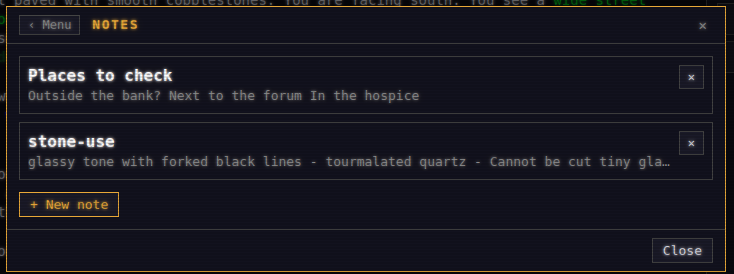
The notepad keeps freeform notes: plans, backstory, who owes you what. Open it with /notes, or from the Esc menu under Tools & References.
| Command | What it does |
|---|---|
/notes |
Open the notepad |
/notes add <title> |
Start a new note with that title |
/notes open <title> |
Open an existing note by title (case doesn't matter) |
/notes delete <title> |
Delete a note |
/notes list |
Print your notes into the output, title and preview, most recently edited first |
Notes are plain text files, one file per note, so you can edit or back them up outside Praetor. Each is titled by its first line, with the rest of the file as the body. They're shared across every account you log in with, not per character. They live in:
~/.config/praetor/notes/
Sending a file
/send expands saved variables in a text file, then sends its contents to the game line by line. Command-chain separators in the file are sent as ordinary text rather than interpreted by Praetor. Use it for a prepared block of emotes, a list of commands, or anything else you'd rather not type live.
- Type /send and press Enter
- Pick the text file in the file dialog
- A Send File window shows the file's name, its line count, and how many batches it will go out in
- Click Save to start sending
How the file is sent:
- Files of 50 lines or fewer go out as one message
- Longer files go out 20 lines at a time, with a 250ms pause between batches
- A completely empty line always ends a batch, whatever the length
- Slash commands inside the file are not interpreted, so every line goes to the game as written
- Alt+X aborts whatever is left to send
Two example files. A short one, sent as a single message:
emote straightens his tunic and steps up to the rostrum.
say Citizens! The games begin at dusk.
emote raises a hand for quiet.
say Bring your coin and your courage.
A longer one with an empty line in the middle. The empty line ends the first batch, so the second group goes out after the 250ms pause:
get pack
open pack
look in pack

wear cloak
wield sword
/send is refused while a play script is running, and /play is refused during a send, so the two can never write to the game at the same time.
Play scripts
/play performs a prepared scene into the game: timed lines, waiting for another player's cue, and manual holds, for a staged announcement, a scripted duel, or any RP scene whose beats need to land at the right moment.
In the script file, a line starting with a hash mark is a comment and is dropped entirely. A line starting with a percent sign is an instruction (see below). Everything else, including blank lines, is sent to the game exactly as written.
| Instruction | Effect |
|---|---|
%wait:<duration> |
Pause, e.g. %wait:5s |
%wait-random:<min>-<max> |
Pause a random time in the range, e.g. %wait-random:2s-6s |
%wait-for:<pattern>[:<timeout>] |
Wait for matching game text, or the timeout (default 60s) |
%wait-key |
Hold until you type /next |
%note:<text> |
Show a reminder to yourself, without sending anything |
Controls while a performance is running:
| Command | What it does |
|---|---|
/play |
Pick a script file and preview it before starting |
/pause |
Hold the performance |
/resume |
Continue, re-running the interrupted instruction from the start |
/stop |
End the performance and discard its state |
/next |
Release a %wait-key hold |
| Alt+X | Stop immediately, the same as /stop |
Only those commands are accepted while a performance runs. Everything else is turned away, so nothing else can write to the game mid-scene.
A short example, opening on the performer's own cue:
%wait-key
emote unrolls a heavy vellum scroll, clearing his throat.
%wait:3s
say Hear me, citizens of the Eternal City!
%wait-random:4s-7s
say By decree of the Council, the north gate shall close at moonrise.
A second example that waits on another player. The note line is shown to you only, and the wait-for line holds until Gaius laughs or 30 seconds pass:
# Tavern toast. Stand at the bar before starting.
%note:Wait for Gaius to finish his story before the first line.
%wait-key
emote raises her cup.
say To Gaius, who never lets the truth spoil a good tale!
%wait-for:Gaius laughs:30s
emote drinks deeply.
%wait-random:3s-6s
say Another round, on me.
For the complete script-language reference: full play-script reference.
Wiki, maps, calculator, kudos, and help
Wiki bookmarks
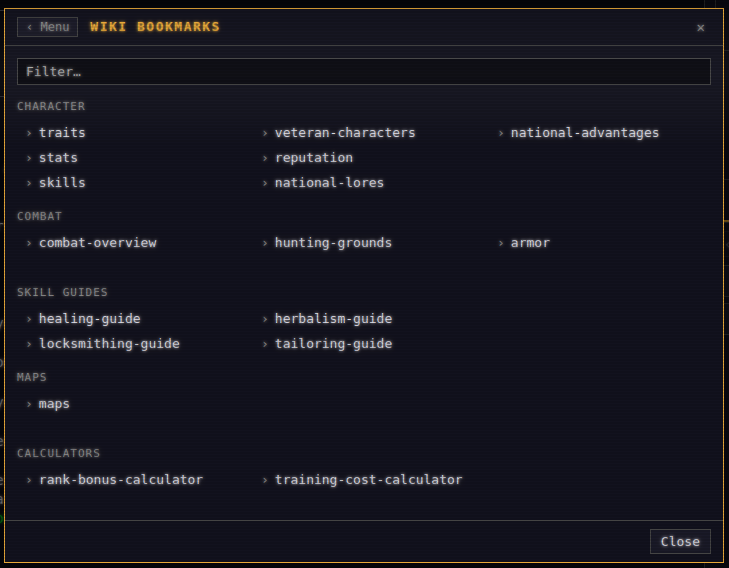
/wiki on its own lists the built-in bookmarks, grouped by topic:
- Character: traits, stats, skills, veteran characters, reputation, national lores, national advantages
- Combat: combat overview, hunting grounds, armor
- Skill Guides: healing, locksmithing, herbalism, tailoring
- Maps: the maps index
- Calculators: rank bonus, training cost
Give it a bookmark's name to open that page in your browser:
/wiki traits
The same list is in the Esc menu under Tools & References, as Wiki Bookmarks.
Map bookmarks
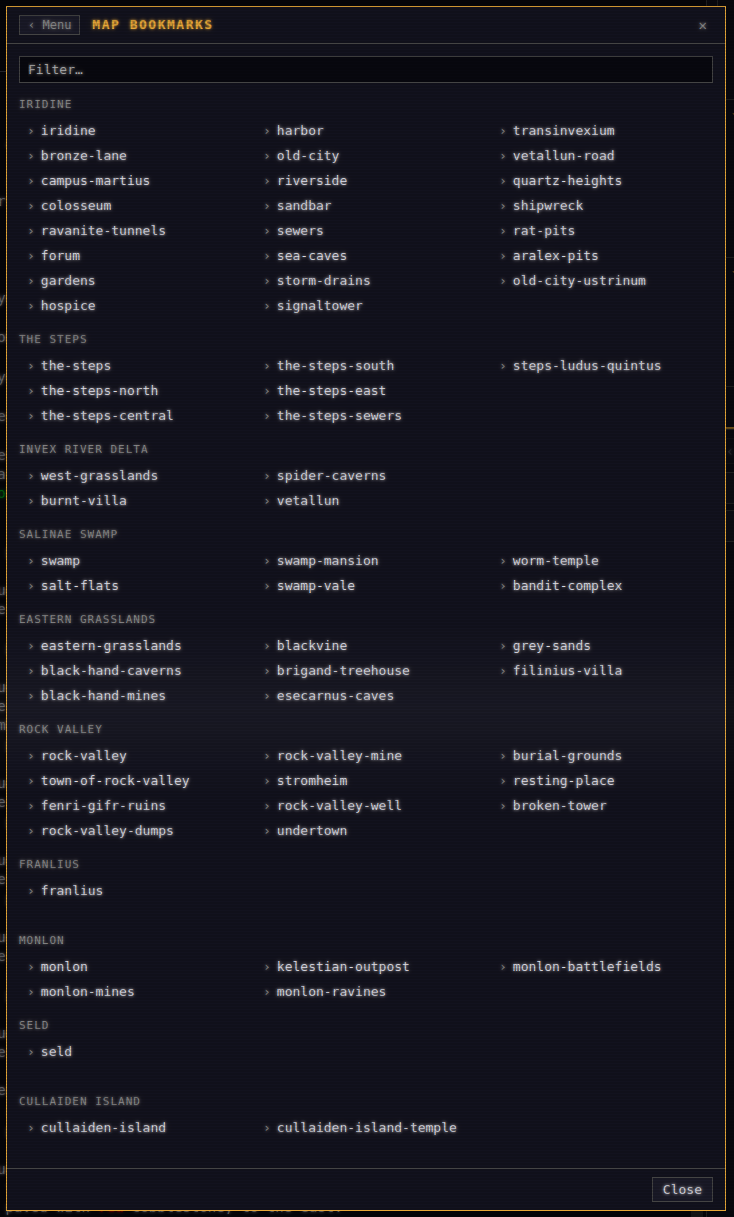
/maps on its own lists this wiki's maps by region: Iridine, The Steps, Invex River Delta, Salinae Swamp, Eastern Grasslands, Rock Valley, Franlius, Monlon, Seld, and Cullaiden Island. Each region expands to its individual maps. Give it a map's name to open that map in your browser, for example the Sewers and Sea Caves map:
/maps sewers
The same list is under Tools & References, as Map Bookmarks.
Calculator
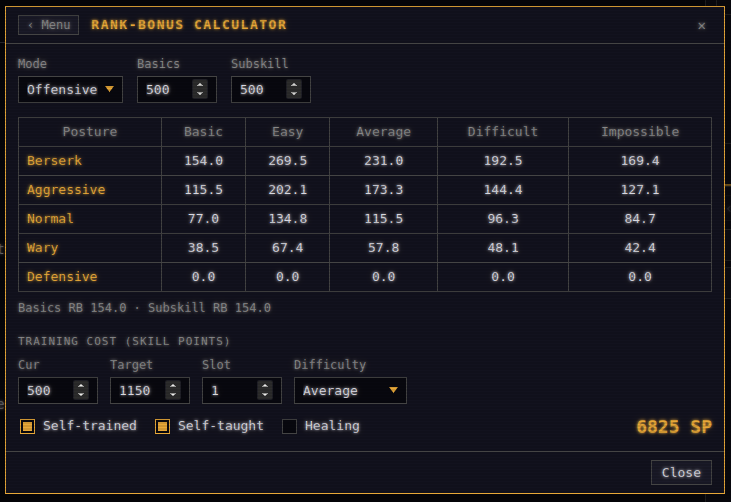
/calc (or /rb) opens the rank-bonus and training-cost calculator, which uses the same math as this wiki's Rank Bonus Calculator and Training Cost Calculator. Choose Defensive, Offensive, or Noncombat, then enter current and target Basics and Subskill ranks. Praetor shows side-by-side current and target rank bonuses for each posture and difficulty, including the Basics and Subskill rank bonuses.
The training-cost section shows the Basics and Subskill rank changes and the cost for slots 1 through 20; use the page button to switch between slots 1–10 and 11–20. Self-trained, Self-taught, and Healing adjust the calculation. Ranks above 1150 display a reminder that training to 1151 or higher requires /selftrain.
Kudos
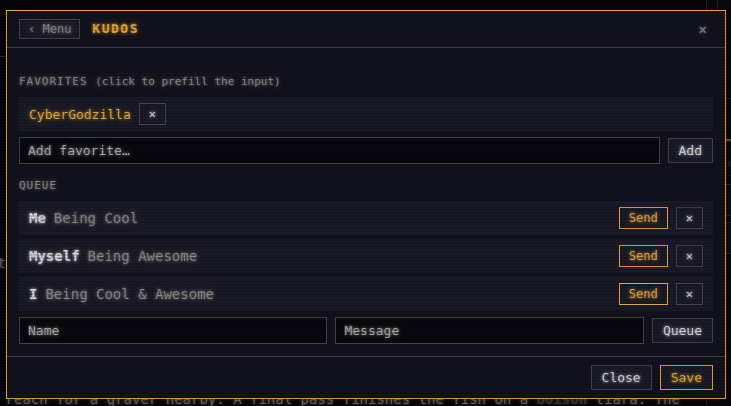
/kudos opens the kudos window. It has a Favorites list of names you kudos often, and a Queue of name-and-message pairs waiting to be sent. When the queue has entries, the window offers Send to send them all. From the input, a name alone adds a favorite, and a name with a message queues a kudos:
/kudos Lucilla
/kudos Lucilla Thanks for the escort through the swamp.
Help
/help opens the same window as Help under Tools & References in the Esc menu. At the top, enter a game-help topic and choose Search to send ?topic to the game, or choose Open TEC Wiki to open the wiki in your browser. The window also documents input syntax, key bindings, and every slash command.
/guide opens the getting-started window, with a short Praetor overview and links to this guide and the scripting documentation.
Logs and data
Session transcripts are turned on or off with the Session transcript logging setting and moved with the Log path setting. They're written to:
~/.config/praetor/logs/
The app log (startup, connection, and error detail, not a copy of the game text) is at:
~/.local/state/praetor/tec.log
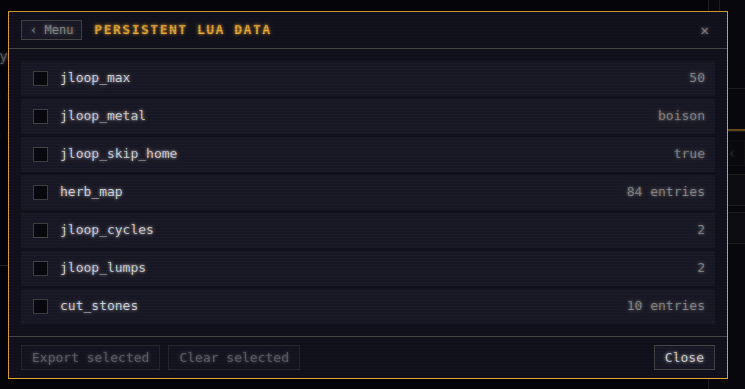
To see what your modes have saved between sessions:
- Press Esc
- Choose Automation, then Persistent Data
- Export selected keys, or clear them
Exports land in:
~/.config/praetor/exports/
On Windows, the tilde is your user folder, so the config folder is:
C:\Users\<you>\.config\praetor
See also
- Praetor: install and first login
- Praetor Scripts: installing, running, and writing modes
- TEC Discord: #unofficial-clients